Use this guide only when you need a custom or local MCP server that is not available through TEC-CoWork Connect. For Gmail, Google Calendar, Google Drive, Slack, Notion, Linear, and other managed services, follow Connect your services. Connecting a custom app with TEC-CoWork takes four clicks.
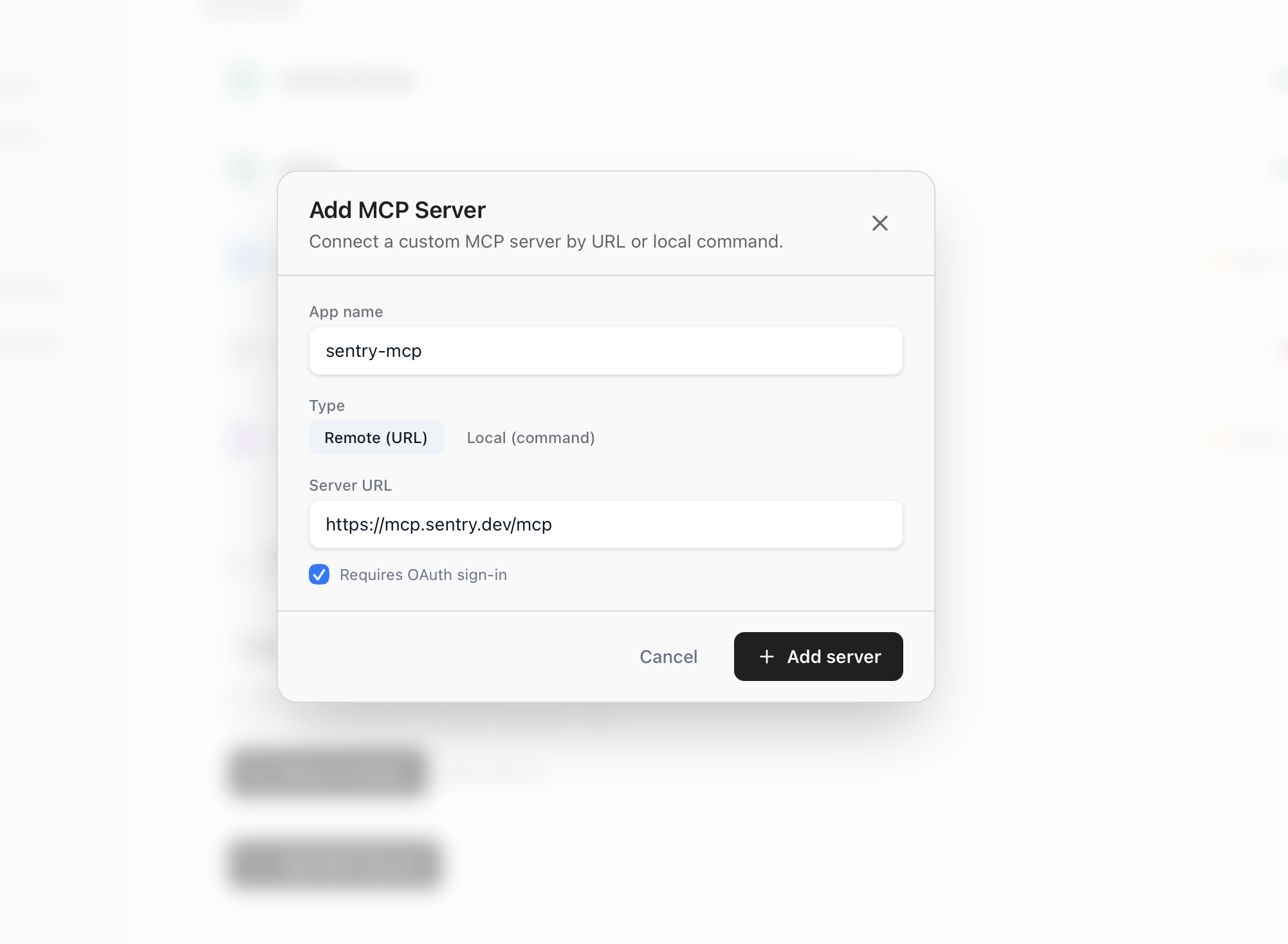
  • In the desktop app, open Settings > Extensions, then click Add Custom App
Extensions page listing available and connected apps
You can add the app to this workspace or to your global configuration for all workspaces.
Add Custom App dialog with name, URL, and OAuth optionsIndicate whether the server requires OAuth.
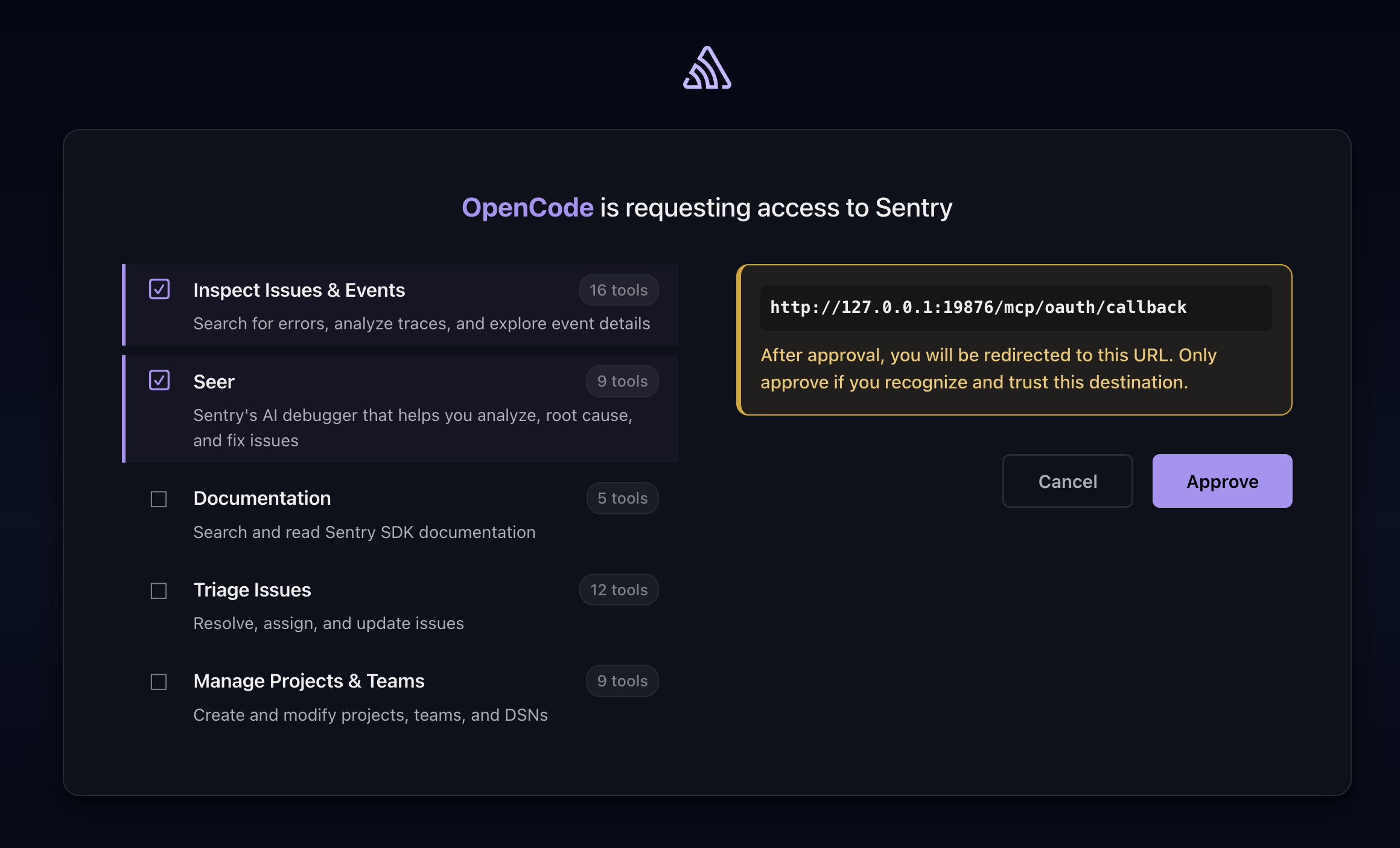
This setup is intended for servers that support dynamic OAuth client registration.
OAuth approval page for MCP server
Complete the provider’s OAuth approval flow in your browser. It should redirect back to TEC-CoWork. If a custom MCP needs behavior TEC-CoWork does not support, open an issue.

Troubleshooting

Some MCP servers do not support dynamic client registration. If the server gives you a pre-registered OAuth client ID and client secret, add it through Add Custom App > Advanced OAuth. For an advanced local Slack setup, follow Connect Slack as a custom MCP.
Error when MCP server does not support dynamic client registration